16.2 Intro to Colaboratory 🎯
This section includes an Activity 🎯
In this checkpoint, you'll get up and running with Google Colaboratory, or Colab. Colab is a platform for data analysis, and it is the development and research environment you'll use in this program for practicing Python.
What is Colab?
Colab is a free platform for running Jupyter Notebooks in the cloud. Jupyter Notebook, in turn, is an interface for writing, executing, and presenting Python code.
Here's what you should know to begin:
- Python and all its major data analysis libraries are already installed. So, most of the time, you just run your Notebooks without installing anything. You can just upload your Jupyter Notebooks and run them on Colab without any modifications to your code.
- Your workflow will look like this: do work in Colab, save a Jupyter Notebook file, then share it with PMcademy.
Set up Colab on Google Drive
If you use Gmail or any other Google service, you already have a Google account. If you don't already have one, start by creating a Google account.
Watch the video and follow along to connect Colab to your Google Drive:
And that's all for setting up Colab in your Drive.
Create a folder for your work
Next, you need to create a new folder on your Google Drive that you'll use to store and share Colab files required for your projects.
In your Google Drive, create a new folder by clicking the New button at the top-left and selecting Folder. Give this folder a good descriptive name like PMcademy_python.
Step 3: Hello world!
Create a new Colab project.
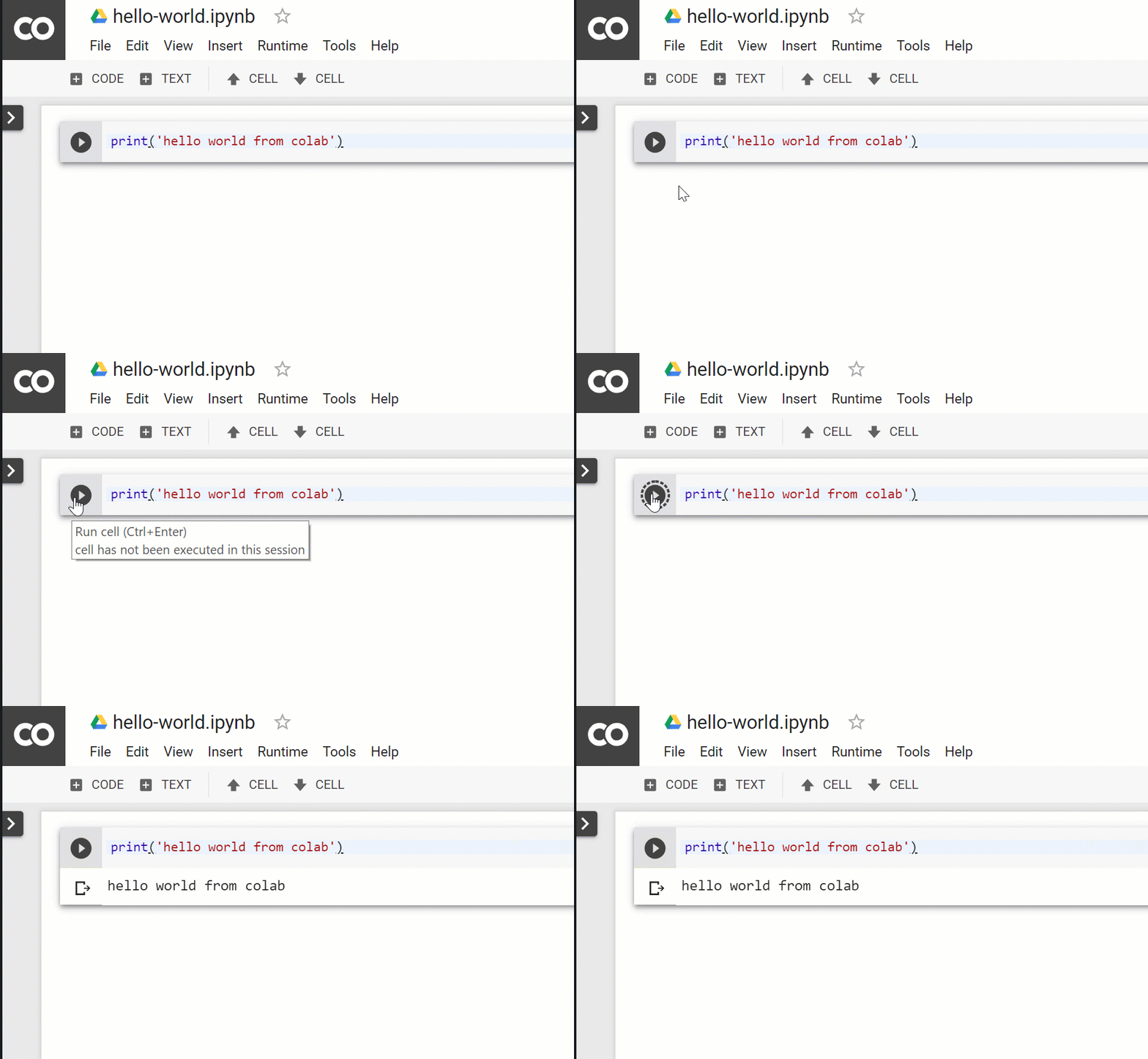
Add a single cell to your Notebook. Inside this cell, enter and execute the following code:
print('hello world from colab')
To execute a cell, click on the Play button to its left. Or with your cursor in the cell, select Ctrl + Enter (Windows) or Ctrl/⌘ + Enter (macOS) on your keyboard.
Save your Colab project and update its sharing setting so anyone with a link can access it. You'll share a link to this project at the end of this checkpoint.
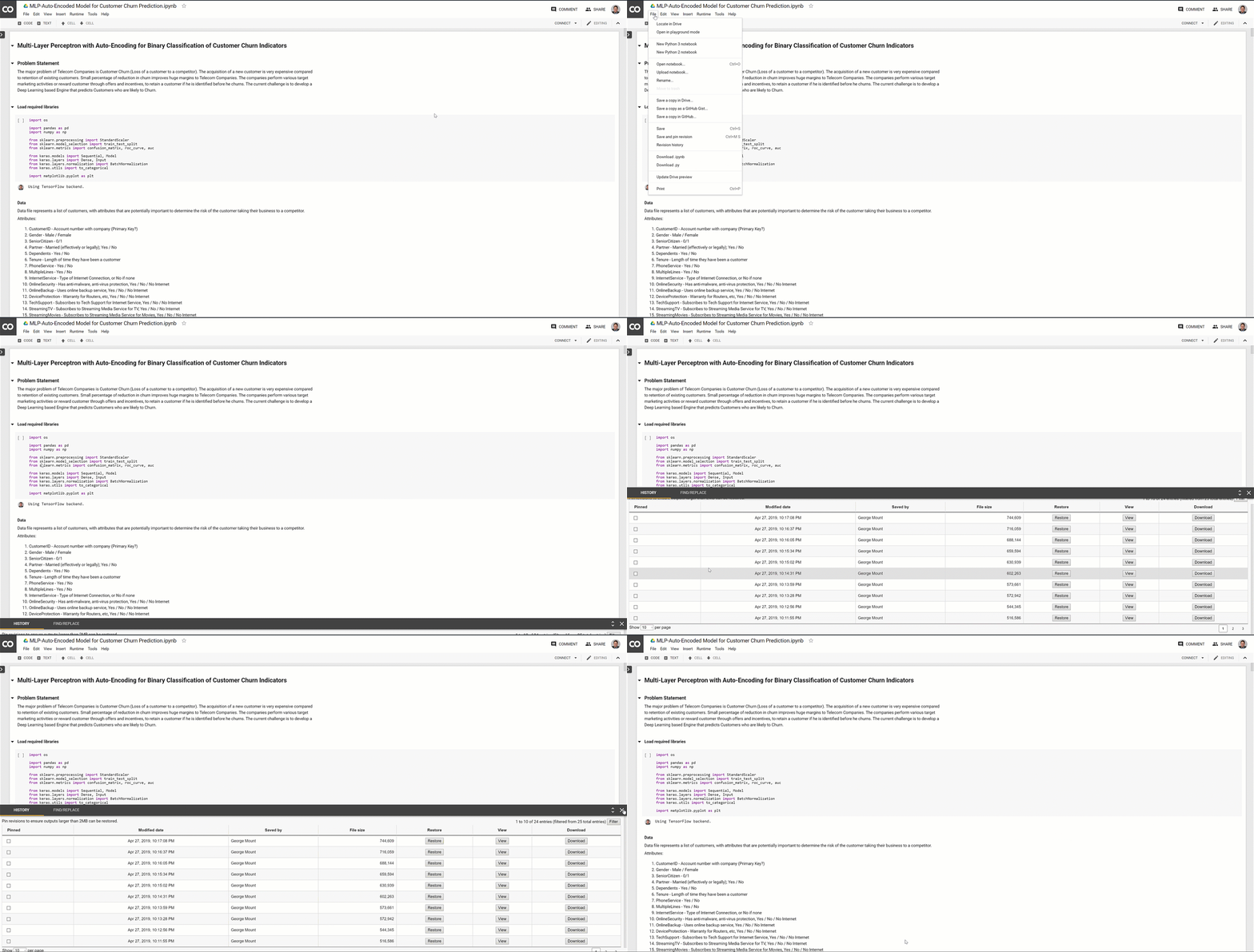
If you wish to return to earlier versions of your Notebook, go to File on the home menu and select Revision History. A menu will appear at the bottom of the page containing the points at which the file was modified. You can restore, view, and download the versions of the Notebook at these points.
Importing Notebooks into Colaboratory
Next, let's see how to import an existing Jupyter Notebook into Colab.
Download this Notebook to your computer.
Next, upload it to the folder you created earlier on your Google Drive for storing projects for this course.
Next, in a new Colab project, click on Google Drive, then find jupyter-import-colab.ipynb. Open the Notebook and confirm that the hello world message displays when you execute the cell.
Activity 🎯
Submit a link to your hello world Colab project you created above to signal that you're up and running with Colab! in your Notion page or notebook