15.3 Setup pgAdmin
🚧 The lesson is being updated as you read.
Now that you have a basic understanding of what SQL is and why it's useful, it's time to get your hands dirty! In this checkpoint, you will use a SQL database management tool called PostgreSQL to begin exploring databases. You'll install and navigate the Postgres graphical interface, called pgAdmin, to get a sense of how databases are set up before you begin writing your own queries.
By the end of this checkpoint, you should be able to do the following:
- Use pgAdmin to explore a database
Getting started with databases
As you now know, SQL is a database computer language. The data it operates on must be held in some type of relational database management system, or RDBMS. Some of the most popular RDBMSs are MySQL, Microsoft Access, Microsoft SQL Server, Oracle, and PostgreSQL. Some of these are open-source and free (such as PostgreSQL, MySQL, and SQLite), while others require payment and are closed-source (such as Oracle and Microsoft Access).
Although all of these systems use SQL, each has its own variation on the language. SQL written for MySQL, for example, might not work properly when used in SQLite. However, the differences are negligible for the fundamental SQL operations you'll be focusing on.
For the purposes of this module, you'll use PostgreSQL, which is a popular open-source RDBMS. More specifically, you'll use the EnterpriseDB edition, which offers a free installation of PostgreSQL and pgAdmin, a graphical database management tool.
Installing PostgreSQL and pgAdmin
pgAdmin is a frequently updated tool. The instructions below use images from version 4.14 and may differ from later versions. It's recommended that you download the latest version of both PostgreSQL and pgAdmin as they typically include performance and security enhancements.
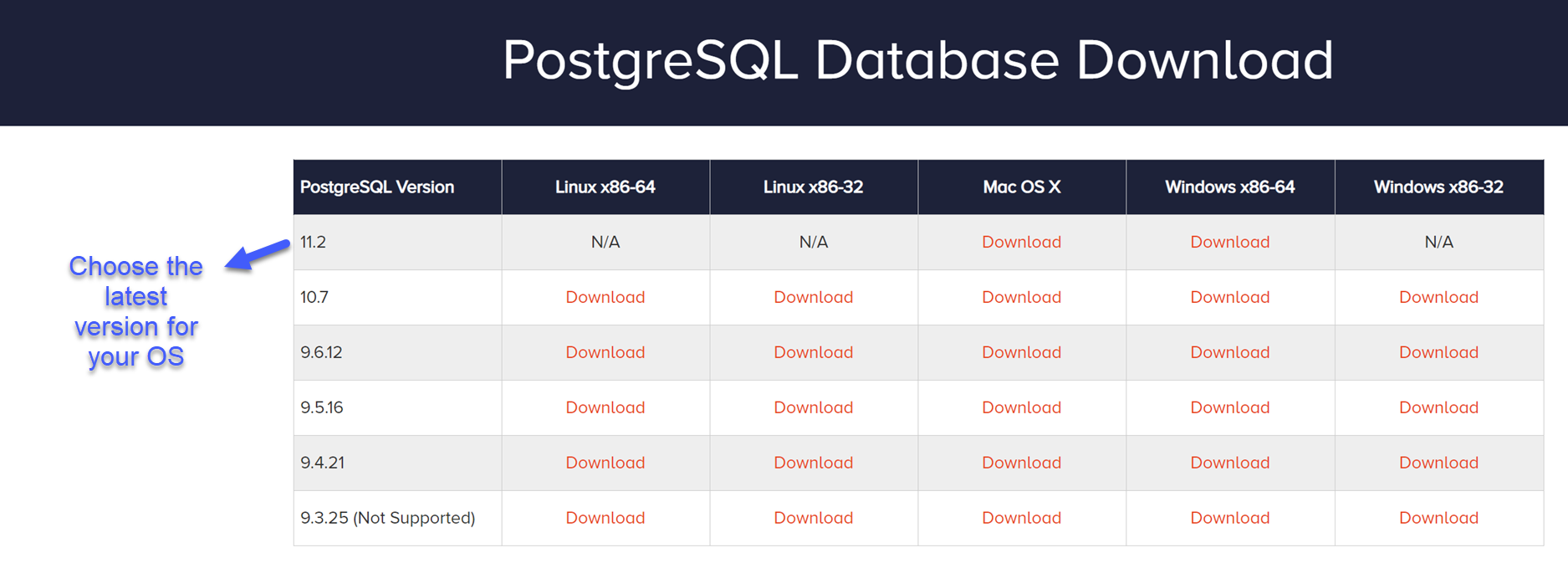
Start by downloading the latest version of PostgreSQL for your operating system.
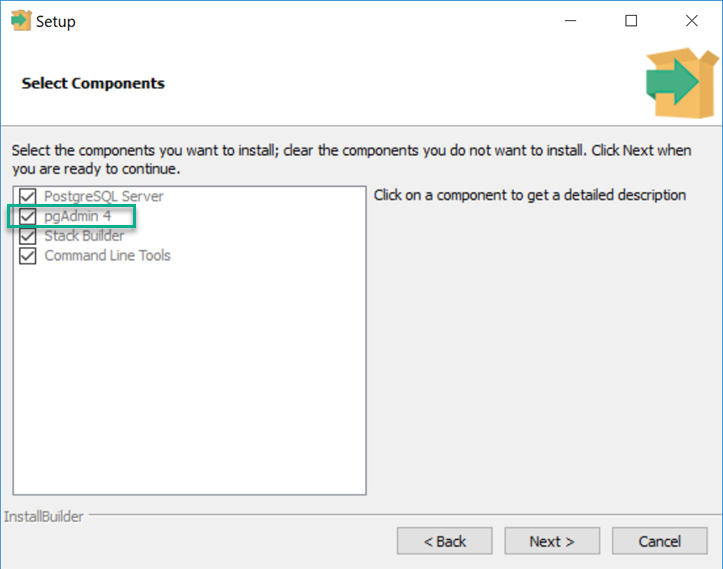
This link will take you to a Setup menu, which will ask you to Select Components. Leave this as it is. With these current settings, pgAdmin will be installed along with PostgreSQL:
Your install should continue running and eventually finish at this menu. All done! Uncheck the option to launch Stack Builder at exit, as seen below.
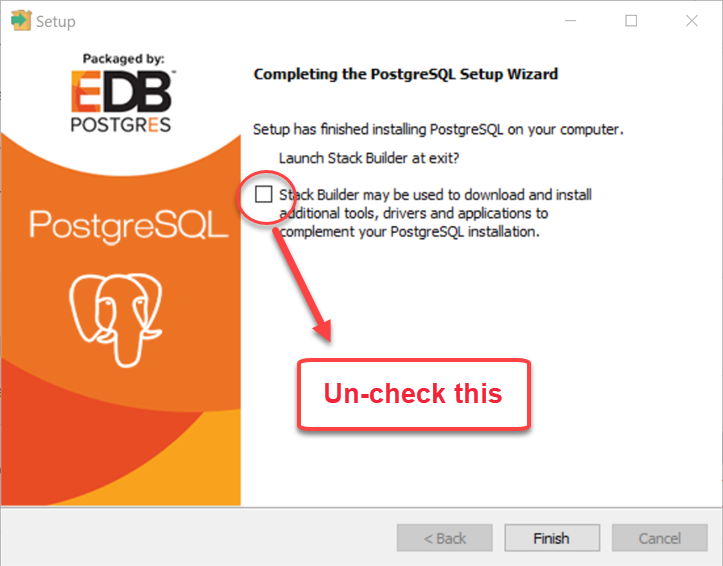
You now have both PostgreSQL and pgAdmin on your machine.
Getting started with PostgreSQL
To get started with PostgreSQL, launch pgAdmin. This program will open in a browser tab. As mentioned, pgAdmin is a graphical tool for managing a PostgreSQL database. You'll see that the bar to the left, called Browser, has a dropdown menu that starts with Servers. Remember that a server is where your database is stored. If you click the dropdown here, you'll see all the databases you are connected to. Of course, you aren't connected to any servers yet. So let's set you up with one.
Right-click on Servers, and select Create. Select Server, and then name the server something logical. For example, you could write PMcademy_Product_MGMT.
Navigating the browser
Start playing around with pgAdmin. First, get familiar with the basics of navigating this tool by watching a short video:
As you try this out yourself, the first thing to focus on is learning more about the tables that make up this database. To investigate further, head to Schemas. Go to Public and then Tables. You should see 24 tables listed here:
You can learn more about these tables by right-clicking on them. Take the film table, for example. Earlier, you learned that every column has a name and a specific data type; that information will help you here. You'll use pgAdmin to learn more about the columns for this table. Right-click on the table, and select Properties. Then, head to the Columns tab. This lists every column in the table, each column's data type, and its length or precision constraints (if there are any).
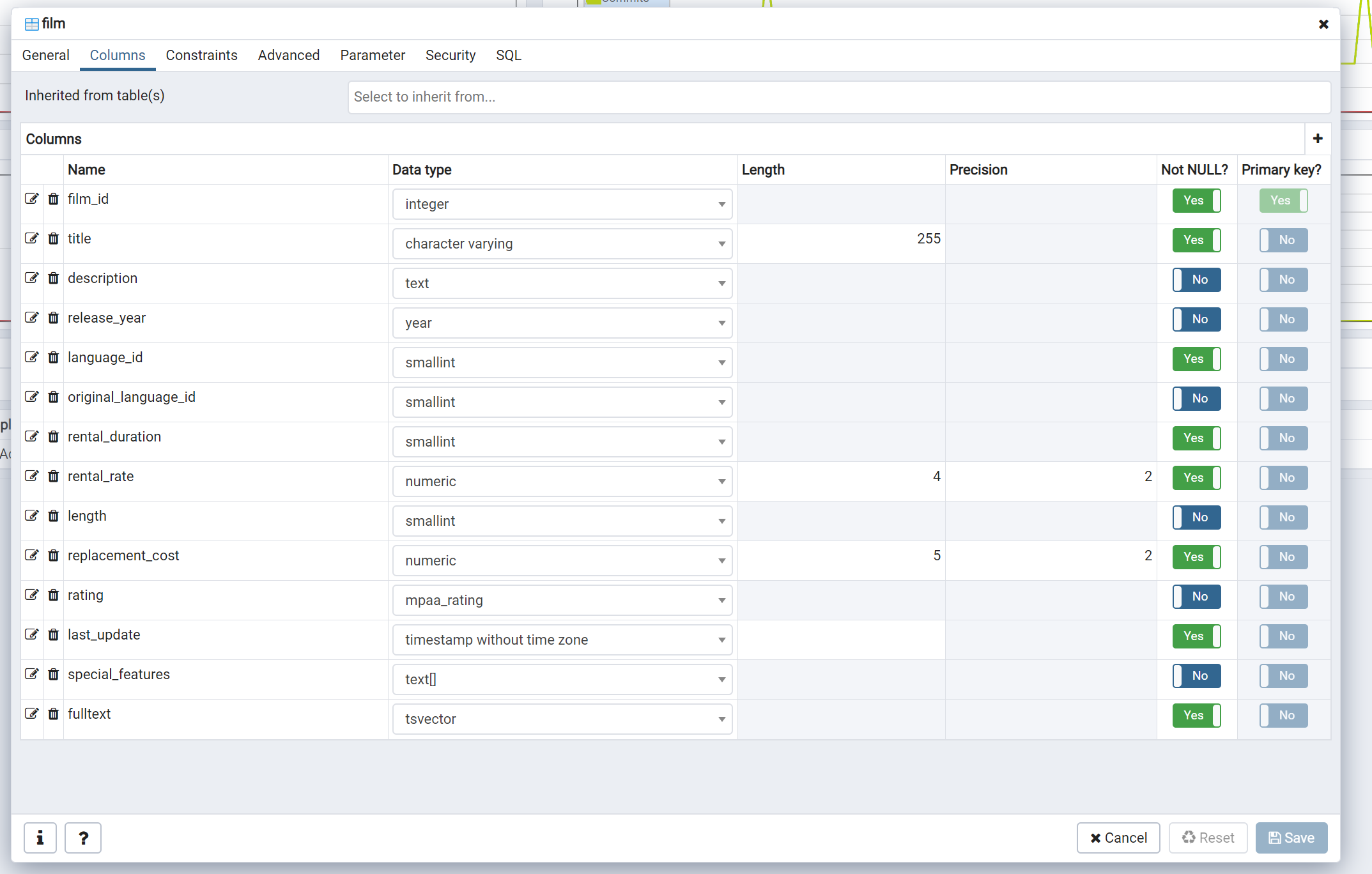
Now that you have a sense of the columns in your database, it's time to look at the rows. As mentioned earlier, a database table can have millions of records. Because of this, it's often not feasible to scroll through and visually inspect every record. However, seeing is believing! A great way to familiarize yourself with a dataset is to look at a sample of records.
To do that from pgAdmin's interface, right-click on the table again. Select View/Edit Data. Here, you have the option to view the first 100 rows, the last 100 rows, or even the whole table. Let the query execute, and the rows will be returned. You can scroll through them and view the data as if it were in a spreadsheet.
Notice a grayed-out box with some script in it above the data output? That's your SQL! Essentially, you generated and executed SQL via the pgAdmin interface. If that SQL code doesn't mean much to you yet, don't worry. By the end of the SQL portion of this course, you’ll be able to write this query yourself and do much, much more.
Assignment
Use pgAdmin to answer the following about the nycflights13 database:
- How many tables does the database contain?
- How many fields does the airports table contain?
- How many of these are of integer type?
- Select the first 100 rows of the flights table. What is the value for
tailnumin the 100th record?
When you are finished, compare your answers to the solutions below
1. How many tables does the database contain?

Five tables: `airlines`, `airports`, `flights`, `planes` and `weather`. This can be found by clicking down on the browser menu on the left hand side of the interface.


2. How many fields does the `airports` table contain?
    1. How many of these are of `integer` type?

There are eight fields in this table. Two of them are of type `integer`. This can be found by right-clicking on the table name from the browser menu and selecting `Properties`. The column properties are found on the `Columns` tab of this menu.


3. Select the first 100 rows of the `flights` table. What is the value for `tailnum` in the 100th record?

`N543UW`. This can be found by right-clicking on the table name in the browser and selecting `View/Edit Data` → `First 100 Rows`, then scrolling to the final record in the `Data Output` tab.